Showing posts with label Chapter 8. Show all posts

Mar 8, 2011

Random Access Memory (RAM) type…

RAM is the type of memory your computer uses to run programs. It is not the storage capacity of the computer, but the capacity of the computer to keep open multiple programs at the same time.
Most desktops and notebooks use one of four popular types of dynamic random access memory (DRAM) for the main system memory (SDRAM, DDR, DDR2, and DDR3).

SDRAM
(synchronous dynamic random access memory)
Above PC2100 DDR. Below PC133 SDR.
·         Single data rate (SDR) SDRAM is the older type of memory, commonly used in computers prior to 2002.

DDR (double data rate)
·         Double data rate (DDR) SDRAM hit the mainstream computer market around 2002 and is a straightforward evolution from SDR SDRAM. The most significant difference between DDR and SDR is that DDR reads data on both the rising and falling edges of the clock signal, enabling a DDR memory module to transfer data twice as fast as an SDR memory module.

DDR2
·         Systems implementing the follow-on technology to DDR, called DDR2 began to appear in mid-2004. DDR2 achieves speeds beyond that of DDR, delivering bandwidth of up to 8.5 GB per second. Frequently, DDR2 based systems can use memory installed in pairs to run in "dual channel mode" to increase memory throughput even further.

DDR3
·         The latest generation of memory technology, DDR3, began to appear in systems in late 2007. DDR3 is an evolutionary step beyond DDR2 and operates at lower voltages, thereby consuming less power, and can transfer data at rates up to 12.8 GB per second.

So secara umumnya DDR3 2X ganda lebih laju daripada DDR2 RAM, 4X ganda lebih laju drpd DDR RAM, dan 8X ganda lebih laju daripada SDR RAM…….

DDR3 ada banyak kebaikan selain drpd speed lebih pantas berbanding RAM yg trdahulu, antara klebihan yg laen ialah kurang penggunaan kuasa, kurang suhu oprerasi (lower operating temperatures), lower latencies, dll… Disadvantage DDR3 plak ialah lebih mahal, x compatible dgn socket DDR2, n memerlukan motherboard baru dan lbih mahal utk ia beroperasi…
Ini disebabkan kebanyakkan motherboard direka utk support satu jenis memory sahaja…so xleh la mix and match SDRAM, DDR, DDR2 @ DDR3 dalam satu motherboard yg sama,…diorg xkan berfugsi dan xkan fit pown dalam satu soket yg sama…..ok


Stumble
Delicious
Technorati
Twitter
Digg
Facebook
Yahoo
Feed

WHY PEOPLE’S PREFER TO USE USB FLASH DRIVE THAN CD-ROM’s or DVD

VS
COST EFFECTIVE
As long as businesses exist, then they will need good, cost effective marketing that reaches a wide audience. In the past, most companies relied on paper. They sent catalogs to all of their customers or handed out flyers. Then, companies tried to adapt to the computer age by distributing CD-Rom's and DVDs instead of paper products. The logic behind this transition was that people would be less likely to throw away digital media as this is clearly not the same as junk mail. Nevertheless, the smarter companies have been making the shift to promotional memory sticks. This is probably the best change yet.
The problem with CDs or DVDs is similar to the problem with the old paper products. People see them as clutter and dispose of them on a whim, often without even bothering to look at them. With USB flash drives this will never be the case. A custom USB flash drive is seen as more expensive, more useful and less disposable than a CD or DVD, so people will be hesitant to throw them away. Already, this makes flash drives a better deal than CDs or DVDs, since the goal is to create something that the average consumer will keep and view. After all, what's the point of spending money for something that people will just throw away?

DURABILITY
Custom USB drives are also more durable than CDs and DVDs, so even if they are carried around for a long time before being used, there would be no scratches or potential data loss. With a CD or DVD, a few scratches could mean the difference between viewing the media and receiving a message that the disc has been corrupted and is unusable. Even if people were to keep a CD or DVD with the intention of looking them later, throwing a purse or bag down to recklessly could ruin all of that.


REUSABLE
Custom USB drives are reusable. It's not a nice thought, but sometimes people want to keep the USB flash drive, but don't want the data. However, even to replace the data, customers have to plug the USB flash drive into their computers first, so if your catalog loads automatically, then they will see it as soon as their computer recognizes that it's there. Even if they replace the data, your brand name is still there on the USB flash drive itself serving as a constant advertisement.

WHAT ABOUT SPEED?????
Although USB Flash drives are more likely to be used by the consumers it’s doesn’t means that USB Drives are faster than CD or DVD. A research had been conducted to see which instrument are faster.
EXPERIMENT :  creating an XP SP3 USB boot disk for installation purposes
Apples to apples comparison (LEVEL ARE SAME)
 48X CD-ROM  ~7MB/s        VS      USB 1.1 stick  ~ 1.5MB/s
So From this case it shown that  USB  1.1 Stick is much more slower than CD’S. 

Credit to hazwan 

for more information please visit :- http://en.wikibooks.org/wiki/Computer_Hardware
                                                    http://en.wikipedia.org/wiki/USB_flash_drive
Stumble
Delicious
Technorati
Twitter
Digg
Facebook
Yahoo
Feed

Mar 7, 2011

LIFE ‘S OF SECONDARY STORAGE

Secondary storage had been used by computer users for along time ago. From time to time, there are different trend in using secondary storage. For example, Floppy Disk once is most common storage to be used by the users but now we can see now floppy disk is very rarely used and many new computers even did not provide floppy disk reader!!.  Down here we list out the evolution of storage that are commonly used by individuals to store data.

HARD DISK
Hard Disk is secondary storage that has in all computers.Its used rigid metallic platters that are stack on top of another, Hard disk store and organize files using tracks, sectors and cylinders.
Tracks – rings of concentric circles without visible grooves and divided into sectors.
Cylinder – runs through each track of a stack of platters to differentiate files stored on the same track and sector of different platters.

Very commonly used hard disk that been located inside system units is called internal hard disk and external hard-disk are portable and can be bring anywhere.in recent technology capacity hardisk storage has been developed to terabyte.

FLOPPY DISK

Floppy Disk use flexible flat circular pieces of Mylar plastic that have been coated with a magnetic material.Floppy Disk drives store data and programs by electromagnetic surface and files are organized and stored according to tracks and sectors.In  90’s floppy disk are widely used in company and university students.
Why floppy disk are very rarely used now???.... because it has so many limitations. One of it main limitations is its storage capacity. For example in 90’s students need to send two or three disk for a work because it storage capacity. ( If there are 200 students send their works, lectures room will be full of it) .

OPTICAL DISK
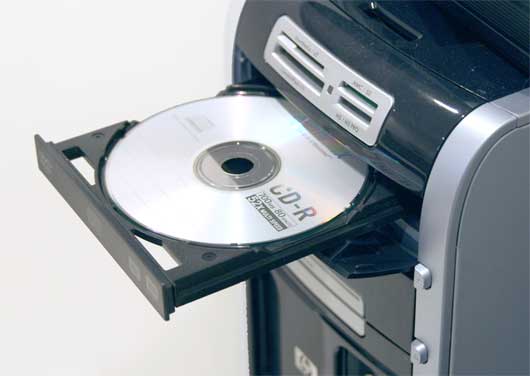
Optical disk  is very popular to be used by the users until now.It in optical-disc technology, a laser beam alters the surface of plastic or metallic disk to represent data.The disc is read by an optical disc drive using a laser that projects tiny beam of light on these area and reflected lights determine wheter the area represents a 1 or a 0. We can divided Optical Disk into three type that is Read only CD-ROM means cannot be written or beerased by users. Write once CD-R can be written once by the users but the data cannot be erased and lastly Rewritable CD-RW the disc surface not permanently altered when data is recorded.
Until now optical disc is continously used as the secondary storage and it has face certain evolution. Its improving for their capacity. First compact disc can only stored from 650MB to 1 GB then DVD discs can stored  4.7 GB to 17 GB on a single disc and now isBlu-Ray Disc that used blue-colored laser to read the disc that can reach until 50 GB.
For now Blu–Ray being used in high technology including in PS3!!... But in Malaysia the Blue-Ray Disk are not commercially used by the users and they still prefer to used CD or DVD because they want to avoid cost of upgrading their driver that can read blue-ray disk

 ONLINE STORAGE SERVICE
Nowadays internet are widely used around the world. In certain country almost at every places we can surf the internet.Plus, wireless technology put customer more on using the internet.Futhermore other secondory storage prone to failure and leading to data loss.There come asolution that is online storage services that allowed user stored their data in the internet and can acess their data when they want to do it.For big companies they pick specialized internet storage provider to backup their file and this still small amount individual users using this type of secondary storage.
Although in foreign company they are using this kind of storage but in Malaysia it still not the first choice for users. Only big company are using this but for individuals they prefer to use their own storage because of their mindset that said things from internet are not safe and can easily be hacked.Although like that it doesn’t mean that this storage is not develop in our country.For example they is a local company that provide internet storage that is afteroffice. The question is how long will it takes for this technology to be used widely like the used of USB flash drive?? For our group  it depends on the way government choose their way to provide which level of internet technology to be used by the citizens because government has power to control communication and technology to be brought to our country.Hopefully it is going better and better.
Stumble
Delicious
Technorati
Twitter
Digg
Facebook
Yahoo
Feed

Diskette type and format.......

Before a diskette can be used to store data, you must prepare it by formatting it, although many diskettes nowadays come preformatted. Formatting creates the physical tracks and sectors that the drive uses to store data (called low-level or physical formatting) and the logical structure used by the operating system to organize that data (called logical or DOS formatting). Unlike hard disks, which require two separate formatting passes, FDDs perform both physical and logical formatting in one step. Also unlike hard disks, diskettes do not need to be partitioned.
The Quick Format option available in Windows and later versions of DOS doesn't really format the diskette. It simply "zeros out" the File Allocation Tables and Root Directory entries, giving the appearance of a freshly formatted diskette but using the original format. Because data on diskettes fades with time, your data will be much safer if you do an actual format, which does a surface test and refreshes the physical and logical format structure of the diskette. Use Quick Format only on diskettes that have recently had a full format done on them. Also, do not count on a Quick Format to wipe sensitive data from a diskette. It's trivially easy to recover such data. To wipe data, do a full format on the diskette. Better yet, use a wipe utility, or bulk-erase the diskette. You have been warned.
To format a diskette with Windows, right-click the drive icon in My Computer or Explorer, choose Format, and mark the appropriate options. At the command line, format a diskette by typing the command format a: /options, where a: is the drive letter of the FDD, and /options controls how the disk will be formatted. The available options and the required syntax vary according to the version of DOS or Windows you use. Type format /? to display available formatting options. Which options are usable depends upon both the FDD type and the diskette type. Some FDDs accept only one type of diskette, while others accept two or more.
To format a diskette with Linux, run kfloppy or gfloppy, the Gnome equivalent. Choose the appropriate size, filesystem, and other options, and then click the Format button. If you prefer a command line, mformat is convenient for formatting DOS floppies. The mdir and mcopy utilities are Linux equivalents for the DOS dir and copy commands, but with additional features.
For about a decade, the 3.5-inch High-Density (HD) FDD has been standard. However, you may encounter older types of FDDs and diskettes when upgrading an old machine or salvaging data, so it's worth knowing something about these obsolescent and obsolete formats. The table below lists the various diskette formats that have been supported on the IBM platform over the years.
diskette characteristics

5.25-inch formats
3.5-inch formats

SSDD
DSDD
HD
DD
HD
ED

Formatted capacity (KB)
160 / 180
320 / 360
1200
720
1440
2880

Media descriptor byte
0xFE / 0xFC
0xFF / 0xFD
0xF9
0xF9
0xF0
0xF0

Bytes/Sector
512
512
512
512
512
512

Sectors/Track
8 / 9
8 / 9
15
9
18
36

Tracks/Side
40
40
80
80
80
80

Sides
1
2
2
2
2
2

Sectors/Disk
320 / 360
640 / 720
2,400
1,440
2,880
5,760

Available sectors/Disk
313 / 351
630 / 708
2,371
1,426
2,847
5,726

Tracks/Inch (TPI)
48 / 48
48 / 48
96
135
135
135

Track width (inch/mm)
.0118/.300
.0118 /.300
.0061/.155
.0045/.115
.0045/.115
.0045/.115

Bits/Inch (BPI)
5,876
5,876
9,646
8,717
17,434
34,868

Media formulation
Ferrite
Ferrite
Cobalt
Cobalt
Cobalt
Barium

Coercivity (Oersteds)
300 / 300
300 / 300
600
600
720
750

Sectors/Cluster
1
2
1
2
1
2

FAT type
12-bit
12-bit
12-bit
12-bit
12-bit
12-bit

FAT length (Sectors)
1 / 2
1 / 2
7
3
9
9

Root directory (Sectors)
4 / 4
7 / 7
14
7
14
15

Root directory entries
64 / 64
112 / 112
224
112
224
240

In addition to the standard formats described above, Microsoft has used the proprietary DMF (Distribution Media Format) for some distribution diskettes. DMF increases the capacity of a standard high-density 3.5-inch diskette by reducing the inter-sector gap to allow 21 sectors/track rather than the standard 18 sectors/track, thereby expanding capacity to a true 1.64 MB (usually called 1.68, 1.7, or 1.72 MB).
On most systems, you cannot read data from or write data to DMF diskettes directly because DIR, DISKCOPY, and other standard disk utilities do not recognize DMF. In fact, attempting to use DISKCOPY to copy a DMF diskette not only yields an unreadable target diskette, but also may actually damage the DMF source diskette. DMF diskettes are readable only by Setup and other Microsoft utilities designed to work with CAB files (the compressed Cabinet files used for software distribution), as well as by some third-party utilities such as WinZip (http://www.winzip.com), which allows you to extract data directly from compressed CAB files, and WinImage (http://www.winimage.com), which allows you to format and copy DMF diskettes directly.
Fortunately, most software is now distributed on CD or DVD discs, so DMF diskettes are seldom used nowadays. We say fortunately because in our experience DMF diskettes are much more likely than standard 1.44 MB diskettes to generate read errors. We have frequently found DMF diskettes that were unreadable straight out of the box, and a DMF diskette that is several years old is very likely to be unreadable. A standard diskette was simply never intended to store that much data.
If you encounter an unreadable DMF diskette, we recommend using WinImage to attempt to extract the CAB files manually to the hard disk. If one FDD consistently generates read errors, the diskette may be readable on a different drive, at least well enough to let you extract the CAB files.


Article published by Peter Kukielka year 2006 month 08
Stumble
Delicious
Technorati
Twitter
Digg
Facebook
Yahoo
Feed

ONLINE STORAGE SERVICE ™


In today’s digital world, our entire life - both work and home are tied to computers. Hard disks are unpredictable and are prone to failures leading to data loss. Research shows that every year 43% of computer users lose valuable data. The best way to hedge your data storage risk is to store critical data on the cloud (online storage services). It let you upload important files to a web-based server and access them from any of your other computers and mobile devices.


Benefit of online storage
  • Allow you to backup your files on the Internet where they are safe and easily accessed.
  • Protect your important files from natural disasters, like fires and floods, from computer threats, like viruses, from theft, being lost or broken and other hazards.
  • Share your files with friends, family or the world.
  • Access your files anytime and anywhere. Never get caught without an important file again. With an online storage service, you can access your files from any computer with an Internet connection. Additionally, some services allow you to view and listen to your media within the service.

There are many online storage services on the Internet so it’s wise to evaluate your storage needs and the quality of the service before creating an account. Some services offer a free membership so you are able to test drive the service before purchasing an account.

Below are the criteria used to evaluate online storage
  • Feature Set (Practical features for uploading, storing, accessing and sharing your files easy)
  • Security (offer encrypted file transfer and password protection)
  • Storage Space/Price
  • Ease of Use
  • Good Help and Support (FAQs, user manuals and tutorials)
There is a lot of online storage in the web today, such as Dropbox,OpenDrive,DriveHQ FileManager, SpideOak, ZumoDrive, Windows Live SkyDrive, IDrive, humyo, Binfire and others..

But today I will only explain about 2 of the most popular online storage:
  1. Dropbox
  2. OpenDrive

1. Dropbox
Launched in early 2008, Dropbox has garnered a large following - the San Francisco-based company announced it had four million users as of January 2010.

How it works
The Dropbox software installs itself in the form of a desktop folder. To sync files, you drag and drop files into the Dropbox folder or into one of its subfolders, and the files will immediately be uploaded to Dropbox's servers.

The Dropbox folder can be treated like any other folder on your local drive. For example, if you create or save a document directly to the Dropbox folder, the document file is automatically uploaded to your account on the Dropbox servers. This file will then be instantly downloaded to any of your other computers on which the Dropbox client program is installed.

To share your subfolders with others, you right-click on one of your Dropbox subfolders and select 'Share This Folder'. This brings up a web form in your browser where you enter the email addresses of the people you want to share the folder with. They are sent a link that will allow them to access your shared folder through the Dropbox site. (Non-users of Dropbox will be required to register for a free account.)

If the people you've selected have the Dropbox software installed on their computers or mobile devices, then your shared subfolder will appear under their Dropbox folder and its contents will be downloaded to their local hard drives.


2. OpenDrive
OpenDrive gives you twice as much online storage as Dropbox. Its desktop software is only for Windows, but it includes a feature that enables you to sell your downloads.

How it works
OpenDrive Desktop places a virtual hard drive within your computer's 'y Computer/Computer' menu, the icon for which is located on your desktop by default. Like Dropbox, you drag and drop your files and folders into it, and they are immediately uploaded to your account's storage space on the OpenDrive server. Dragging files and folders out from it will download copies of them to your local computer's hard drive. Basically, it works like an external hard drive connected to your computer, except that it exists online.

Syncing a file or folder is done by right-clicking on any file or folder in your local hard drive and choosing 'Synchronise with OpenDrive'. A copy of the file or folder will be placed in your OpenDrive virtual drive and uploaded to your OpenDrive account online space.

An intriguing feature of OpenDrive, setting it apart from the other services reviewed here, is that it lets you sell downloads of your files to the public. To do this, you right-click on a file stored in your OpenDrive virtual drive and, in the menu prompt, enter a selling price (in US dollars). OpenDrive will create a link that you can post. The person who clicks the link will be required to pay via PayPal to download your file, and the money will be credited to your OpenDrive account.

Stumble
Delicious
Technorati
Twitter
Digg
Facebook
Yahoo
Feed